Wood for Carving - Free 3D Carving Game
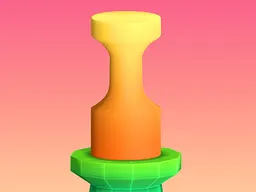
Wood for Carving is a free 3D carving game you play directly in your browser on desktop or mobile. You're given a block of wood and a target shape, then you carve, sand, paint, and decorate your way to match it. The whole game lives in your browser window—no downloads, no waiting.
The First Few Minutes
You start with a solid block of wood and a silhouette showing what you need to make. The game shows you the tools at the bottom: a carving knife, sandpaper, paint, and stencils. Your first move is to slide your finger or mouse across the wood to cut away material. The wood breaks apart in satisfying chunks. It's immediately tactile—you feel like you're actually shaping something, not just tapping buttons. Within thirty seconds you understand the loop: cut the rough shape, then refine it with sanding, then add color and detail. The first few shapes are forgiving. A simple star, a basic heart, a small figure. You nail them quickly, and the game rewards you with a quick animation and moves you to the next one.
Main Mechanic
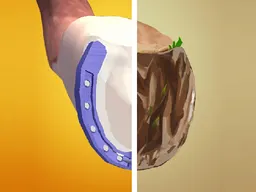
The core of Wood for Carving is straightforward: you manipulate a 3D wooden block until it matches a target shape. Carving is the foundation. You drag across the wood and material vanishes, leaving the blocky form beneath. Unlike realistic wood carving, this game doesn't demand precision millimeter work. It's about reading the silhouette, understanding which chunks need to go, and removing them. Once the rough shape is there, you switch to polishing. Sandpaper smooths the edges and surfaces you've already cut. Then paint adds color. Finally, stencils let you press patterns and details onto the finished piece. Each tool is a separate phase, so you never feel lost switching between them. The game progresses through dozens of these shapes, each one a little more complex than the last. Some are recognizable objects—a key, a star, a shoe. Others are abstract forms. The challenge isn't in the carving itself but in translating a 2D target into a 3D object you're holding in your hands.
Controls
Desktop: Click and drag your mouse across the wood to carve. Switch between tools using the buttons at the bottom of the screen. Rotate the wooden block by dragging on empty space around it to see your work from different angles. Mobile: Slide your finger across the wood to carve, just as the game instructs. Tap the tool buttons to change from carving to sanding to painting. Rotate by dragging with two fingers or using the rotation controls. The touch controls are essential here because this game was built for phones and tablets first. The 720x1280 resolution means the interface scales perfectly to a vertical screen, and dragging to carve feels natural on a touchscreen in a way that mouse-only games sometimes miss.
Mistakes Everyone Makes
The biggest trap is carving too much too fast. New players see the target shape and immediately start cutting away huge sections of wood. Then the shape is half-gone, and you realize you removed something you shouldn't have. The fix is patience. Make small cuts. Rotate the block frequently to see what the opposite side looks like. The second mistake is skipping the sanding phase. After you've carved the rough shape, you'll be tempted to paint right away. Don't. Sanding removes the blocky edges and makes the piece look intentional rather than destroyed. It takes maybe twenty seconds per shape but transforms how your carved wood looks. The third mistake is underestimating how much the stencil phase matters. A stencil isn't just decoration—it's often the difference between your piece looking half-finished and looking complete. Some shapes feel wrong until you add the stencil pattern, and only then do you see what the target really was.
When It Gets Harder
The early shapes have clean, simple forms. A square, a circle, a diamond. As you progress, the targets become asymmetrical and organic. You'll face shapes with curved edges, thin sections, and parts that stick out awkwardly. Carving a curved surface is trickier than carving a flat plane because you're working in 3D space and the angle of your drag matters more. Around the tenth or fifteenth shape, you'll hit something where your first attempt doesn't quite match. You carve what you think is right, compare it to the target, and see you've gone wrong somewhere. This is when the game stops being muscle memory and starts asking you to actually look at the shape you're making. Some wood carving tools require more precision than earlier ones. Thin lines, small details, pieces that need to be proportionally correct. You can't just hack away anymore. The game doesn't get unfair, but it does stop forgiving. It's still hypercasual—each shape takes two or three minutes—but now you're thinking between cuts instead of just dragging automatically.
How to Really Improve
First, use rotation constantly. The game lets you spin the block with your mouse or fingers. Shapes that look impossible from one angle often make sense from another. Rotate frequently and you'll spot the exact section you need to carve next. Second, work from the biggest shapes to the smallest. Carve the overall form first, then refine the details. This approach means you're never stuck halfway through trying to remove a huge chunk and accidentally hitting a delicate section. Third, let sandpaper do its job. Sanding isn't just cosmetic. It rounds edges and creates curves from blocky geometry. A heavily sanded shape looks more like what you're aiming for than a carefully carved but unsanded one. Fourth, study the target before you start carving. Spend five seconds looking at the silhouette. What's the overall outline? Where are the thickest parts? Where does it taper? This mental model prevents you from carving the wrong section. Finally, don't be afraid to abandon a shape and restart. If you're five minutes in and nothing is matching, you probably carved something fundamentally wrong. Restart and use what you learned the first time.
What to Expect After an Hour
After an hour, you'll have completed around fifteen to twenty shapes. You'll have developed a feel for how much material to remove in each direction. Your shapes will start to actually look intentional rather than accidental. The pace of the game is steady but never rushed. Shapes unlock gradually, so there's always another one to try. You'll notice patterns in how shapes are constructed and begin to predict what tools you'll need before you start. The difficulty curve is gentle but real. By the hour mark, you're working on pieces that would have seemed impossible when you started. A shape with six different sections and curved edges is now manageable because you understand the workflow. The game's 3D engine handles rotations smoothly, and the tactile feedback from carving keeps it satisfying no matter where you are in the progression. Most players find this is a game that's easy to pick up for five minutes, but easy to lose an hour to as well. The hypercasual label fits: no menus to parse, no story to follow, no pressure. Just wood, tools, shapes, and the satisfaction of turning rough material into something that matches the target.
Controls
Keyboard and mouse
- Click and drag your mouse across the wood to carve
- Drag on empty space around the block to rotate it and see different angles
- Click the tool buttons at the bottom to switch between carving, sanding, painting, and stencils
Touch
- Slide your finger across the wood to carve
- Drag with two fingers or use the rotation controls to rotate the block
- Tap the tool buttons at the bottom to switch tools
FAQ
- Is this game really free and do I need to download anything?
- Yes, it's completely free and plays in your web browser. No download needed. You can start playing immediately on any device with a browser and an internet connection.
- Can I play this on my phone?
- Yes. The game is built for mobile with a 720x1280 resolution and touch controls. It plays smoothly on phones and tablets. Dragging to carve on a touchscreen feels natural and responsive.
- What if I carve off a piece I needed?
- There's no undo button in the traditional sense, but restarting a shape takes only a few seconds. If you're stuck, you can abandon your current attempt and begin the same shape fresh. You keep all your progress on completed shapes.
- Do I have to paint every shape or is carving enough?
- Painting and stencils are part of the progression. Most shapes require you to match not just the carved form but also the colors and patterns. Skipping the painting phase means your shape won't match the target, so you'll need to complete that step.
- How many shapes are there to carve?
- The game contains dozens of shapes with varying difficulty. The progression starts with simple forms and moves to more complex, asymmetrical pieces. There's enough content to play for an hour or more, and the difficulty curve is steady throughout.
- Is there a time limit on each shape?
- No. You can take as long as you want to carve, sand, paint, and decorate each piece. There's no pressure or countdown. Play at your own pace.
- What's the difference between carving, sanding, and painting?
- Carving removes large chunks of wood to establish the basic shape. Sanding smooths the edges and surfaces you've carved, making them look intentional rather than rough. Painting adds color, and stencils add patterns and fine details. All three steps are usually needed to match the target.
Similar games
More Hypercasual Games games →